How to use:
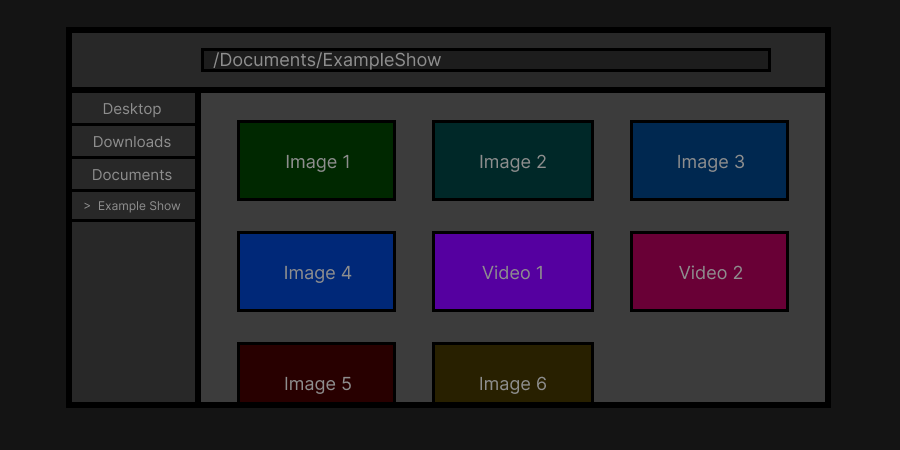
Step 1 : Set Up Show Folder
The first step to a new show is to create a designated folder on your computer.
Open your file explorer, create a new folder, and then place all the images and videos that you will be using in it.
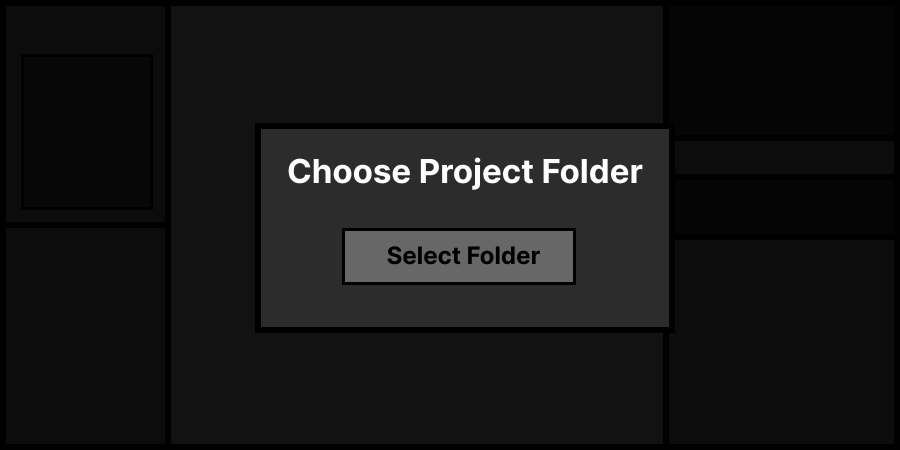
Step 2 : Choose Your Show Folder
With your show folder now created, you can head to www.easyshows.org/presenter and select the folder you created.
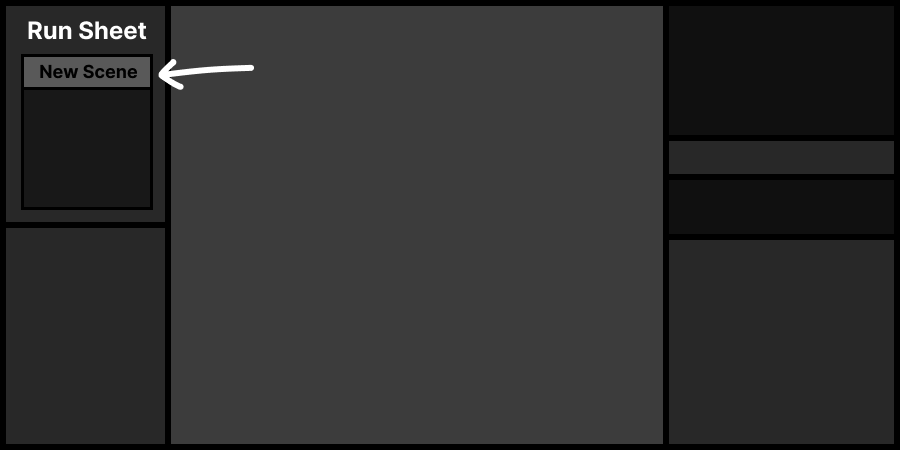
Step 3 : Create Scenes
With your show now created, the first thing a show needs is scenes.
Scenes will be used to hold your different slides and are able to share settings.
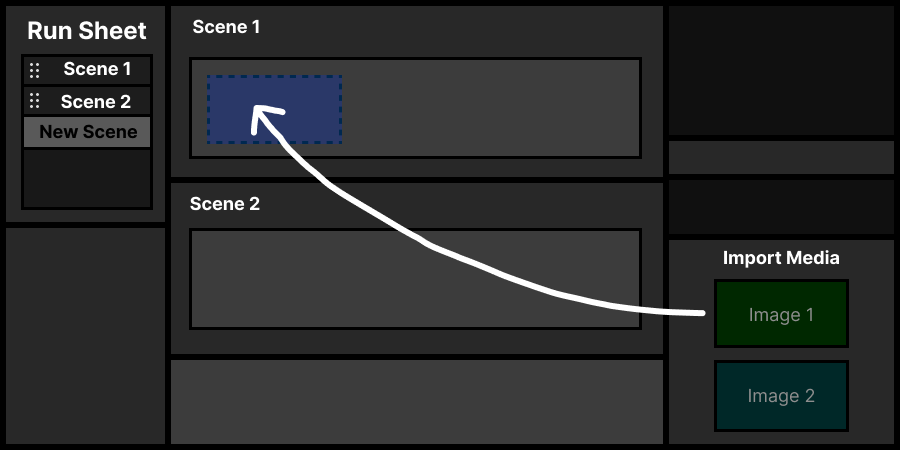
Step 4 : Add Slides
All of the images and videos that were in the show folder can be dragged onto one of the scenes.
If you need to add more images, just add them to the folder and refresh the page.
Step 5 : Create View Window
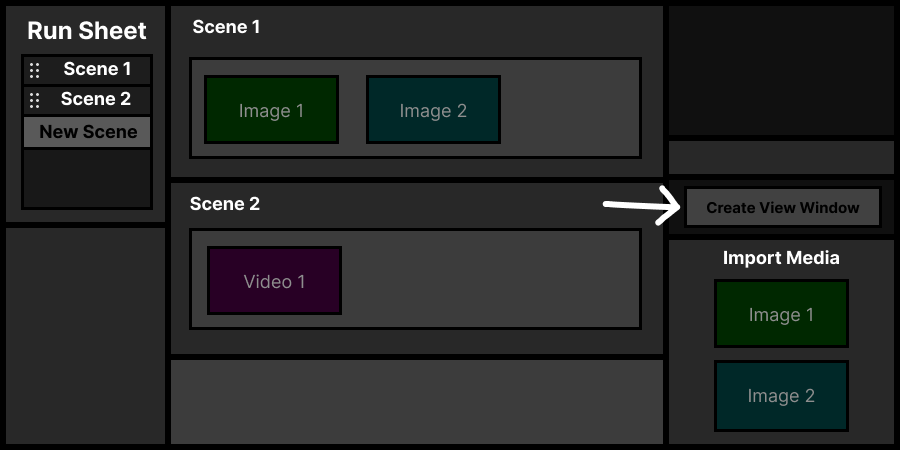
To now present your slides, you must create a view window.
You can either create a popup by clicking the button, or by going to www.easyshows.org/view on the same computer.
Step 6 : Place the View Window
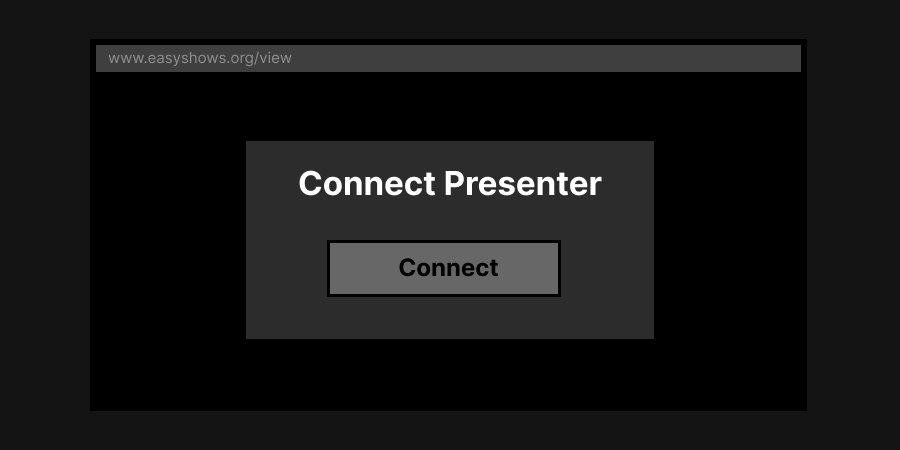
You must now drag the view window to the second screen.
If both screens are just showing the same thing, then go to your computer's display settings and make sure that you have them set to extend, not mirror.
Once the window is in place, click the connect button, which will set the view window to full screen.
Step 7 : Present Your Slides
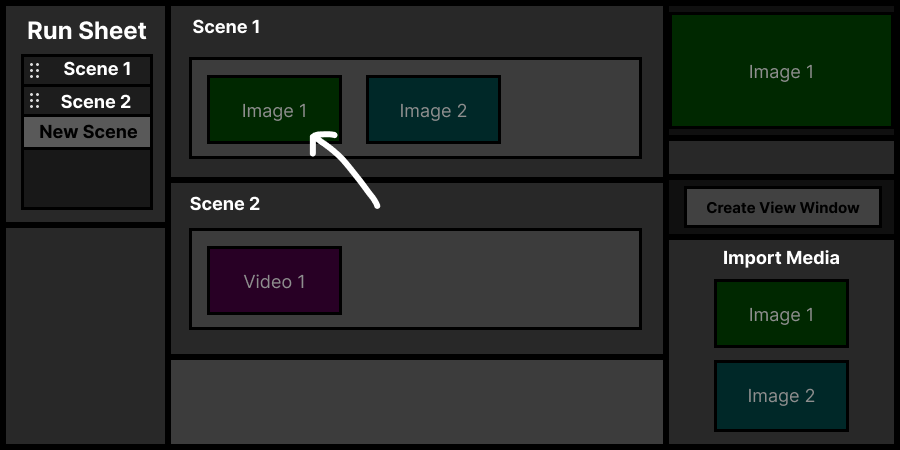
Going back to the present screen, now when you click on one of the slides it will show up in the preview section and on the view window.
Step 1 : Set Up Show Folder
The first step to a new show is to create a designated folder on your computer. Open your file explorer, create a new folder, and then place all the images and videos that you will be using in it.
Step 2 : Choose Your Show Folder
With your show folder now created, you can head to www.easyshows.org/presenter and select the folder you created.
Step 3 : Create Scenes
With your show now created, the first thing a show needs is scenes. Scenes will be used to hold your different slides and are able to share settings.
Step 4 : Add Slides
All of the images and videos that were in the show folder can be dragged onto one of the scenes. If you need to add more images, just add them to the folder and refresh the page.
Step 5 : Create View Window
To now present your slides, you must create a view window. You can either create a popup by clicking the button, or by going to www.easyshows.org/view on the same computer.
Step 6 : Place the View Window
You must now drag the view window to the second screen. If both screens are just showing the same thing, then go to your computer's display settings and make sure that you have them set to extend, not mirror. Once the window is in place, click the connect button, which will set the view window to full screen.
Step 7 : Present Your Slides
Going back to the present screen, now when you click on one of the slides it will show up in the preview section and on the view window.